
Define what each group should receive
A migration has two jobs: preserve the audience records you intend to keep and place each person at the correct point in your email program. An existing reader who completed onboarding should not automatically receive the same introduction as a brand-new signup. Write that distinction down before choosing import destinations.
This is a research checklist, not a completed migration. Keep exports private and follow your organization's permission and retention process. Use a local test file with addresses you control when rehearsing the import.
Inventory every destination that can start work
Kit's import FAQ says imports into a tag, form, or sequence can trigger connected automations. Inspect the destination and all connected entry points before importing. A label that looks like organization can also be an instruction to start sending.
Our suggested design separates an import-batch tag from an onboarding-entry tag. This only helps if the batch tag is not connected to another automation or rule. Check that assumption explicitly; a naming convention alone does not isolate a live system.
| Audience case | Intended treatment | Check before import |
|---|---|---|
| New signup | Eligible for current onboarding | Entry trigger and sequence |
| Completed onboarding | Continue normal newsletter only | No unintended restart |
| Partway through onboarding | Choose a documented restart or continuation policy | Expected first message |
| Unsubscribed or suppressed | Remain excluded from marketing | Do not import as active subscribers |
Rehearse with a tiny batch
Build a short file containing only controlled test addresses representing the eligible cases. Record their current state, chosen destination, expected messages, and expected non-messages. Inspect each profile after import, then inspect automation activity; a successful upload does not prove correct routing.
Kit documents that importing new field data can overwrite existing values, including replacing a value with a blank from the import file. Remove unintended blank fields from the mapping before testing. Avoid repeated imports as a debugging technique until you understand both field updates and automation entry behavior.
Use a bounded cutover
Record the export timestamp, mapping decisions, import result, and remaining exclusions. Keep the old provider's campaigns coordinated with the new system so neither sends unexpectedly during the transition. Do not delete the source account simply because totals look similar.
Our stop condition is any controlled subscriber entering an unexpected sequence. Pause the migration, inspect that entry path, and rerun the smallest relevant case. Complete the full import only after the sample matches the written plan. The attached worksheet can hold the plan without storing real subscriber addresses; use internal case labels.
Watch demos / Official walkthroughs
See how the tools work.
Videos load from YouTube only when you press play. These are provider videos, not our own product tests.
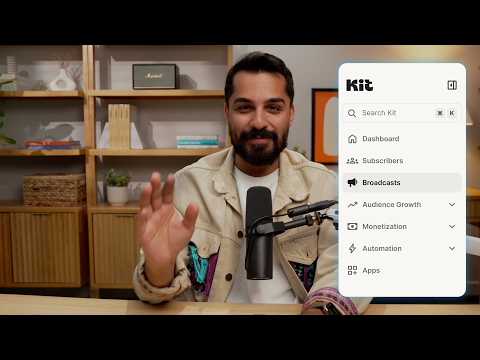
Kit / Official video
Kit’s New Vertical Navigation: A Full Walkthrough
What to look for: Locate subscriber, email, and automation navigation before choosing a workflow.
Watch on YouTubeYour next step / Review the option
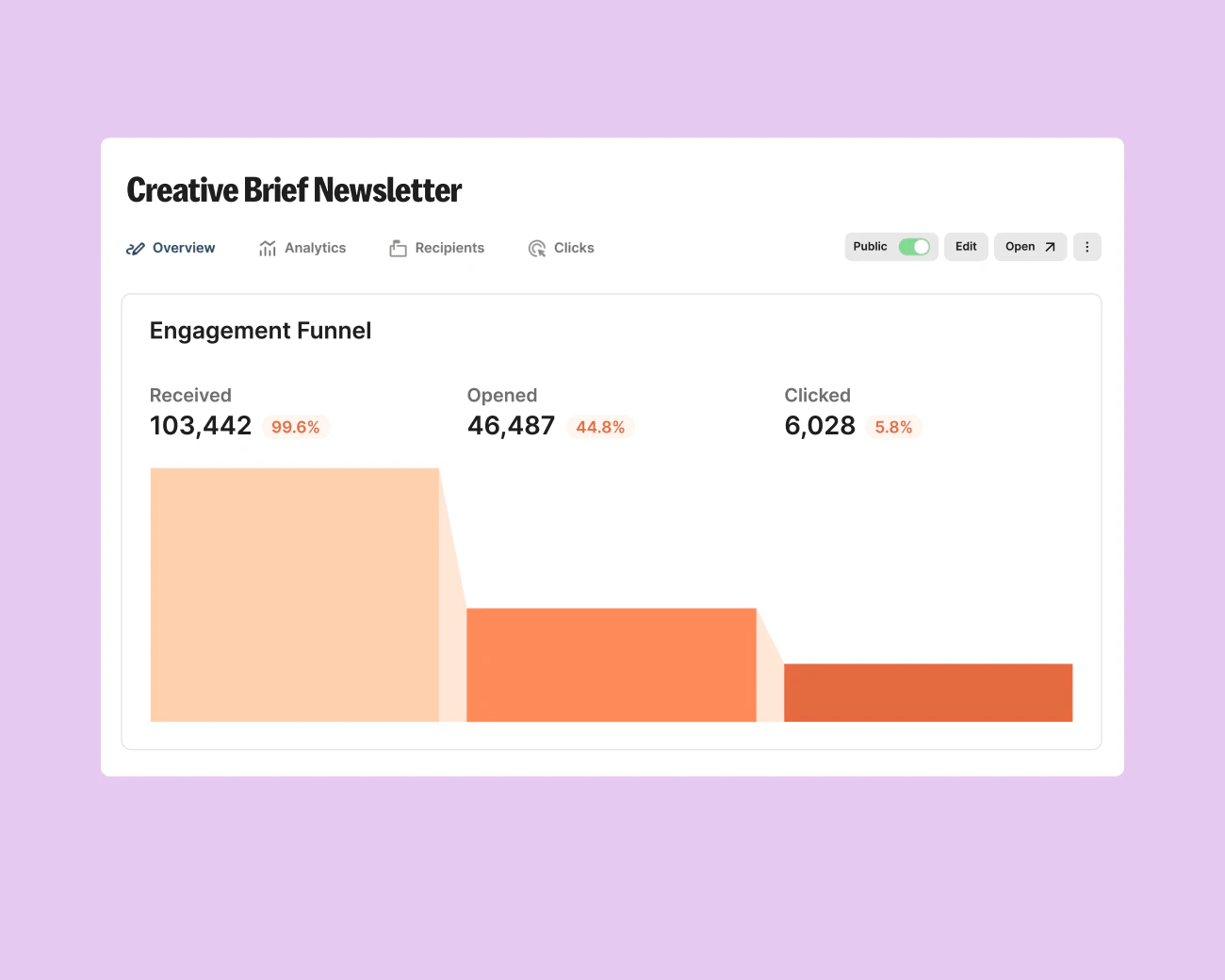
Kit
Evaluate for subscriber broadcasts; consider Creator when a specific sequence or automation earns its cost.
Free plan; audited Creator example $39/month for 1,000 subscribers
Subscriber count and billing interval change price. The paid workflow has not been tested.
Ordinary provider link. No affiliate partnership claimed. Link disclosure
Sources & verification
Product details and prices can change. Check the linked provider before buying.
- Kit importing subscribers FAQ Accessed 2026-09-14
Sources link directly to providers. Product buttons may use separately labeled affiliate links. Read our disclosure.